பல வேரியண்ட்கள் கொண்ட பொருளை அமைத்தல்
இந்த வழிகாட்டி, மெர்சண்ட் செயலியில் ஒரு பொருளுக்கு பல வேரியண்ட் குழுக்களை அமைப்பது எப்படி என்பதை விளக்குகிறது. பல வேரியண்ட்கள் இருந்தாலும், ஒரே ஒரு வேரியண்ட் குழுவிற்கு மட்டும் விலை நிர்ணயம் செய்ய முடியும்; இதுவே முதன்மை விலை கொண்ட வேரியண்ட் குழு ஆகும். மற்ற அனைத்து வேரியண்ட் குழுக்களும் ₹0 விலையில் இயங்கும். பில்லிங் முடிக்க, ஒவ்வொரு வேரியண்ட் குழுவிலிருந்தும் குறைந்தது ஒரு தேர்வு அவசியம்.
எடுத்துக்காட்டு
- பொருள்: பன்னீர் பர்கர்
- அளவு: முதன்மை விலை கொண்ட வேரியண்ட் குழு
- பன்னீர் வகை, சாஸ்: தனிப்பயன் தேர்வுகள் (₹0)
தொடங்குவதற்கு முன்
- மெர்சண்ட் செயலியில் உள்நுழைந்திருக்க வேண்டும்
- இன்வென்டரி பகுதிக்கு Edit access இருக்க வேண்டும்
படி 1: பொருளை உருவாக்குதல் அல்லது திருத்துதல்
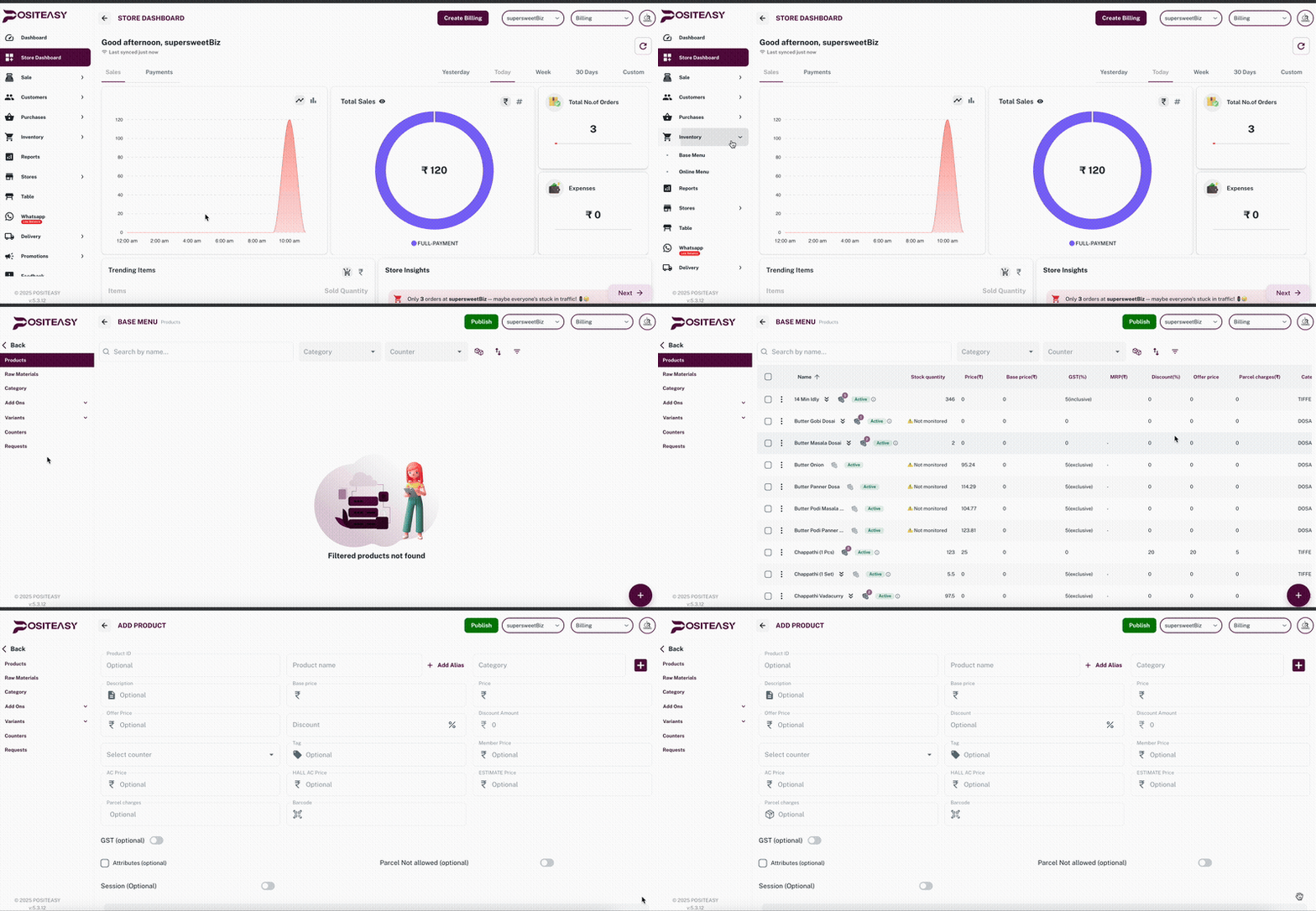
- Inventory → Products பகுதிக்கு செல்லவும்
- புதிய பொருளை உருவாக்கவும் அல்லது ஏற்கனவே உள்ள பொருளைத் திறக்கவும்
- பெயர், கேடகரி போன்ற அடிப்படை விவரங்களை உள்ளிடவும்
வேரியண்ட் அடிப்படையிலான பொருளுக்கு, முதன்மை விலை புலத்தில் விலை நிர்ணயம் செய்ய முடியாது. விலை அனைத்தும் முதன்மை விலை கொண்ட வேரியண்ட் குழுவில் மட்டுமே அமைக்க வேண்டும்.
படி 2: வேரியண்ட் குழுக்களை உருவாக்குதல்
- பொருள் திரையில் Variants பகுதிக்கு செல்லவும்
- Add Variant தேர்வு செய்து வேரியண்ட் குழுக்களை உருவாக்கவும்
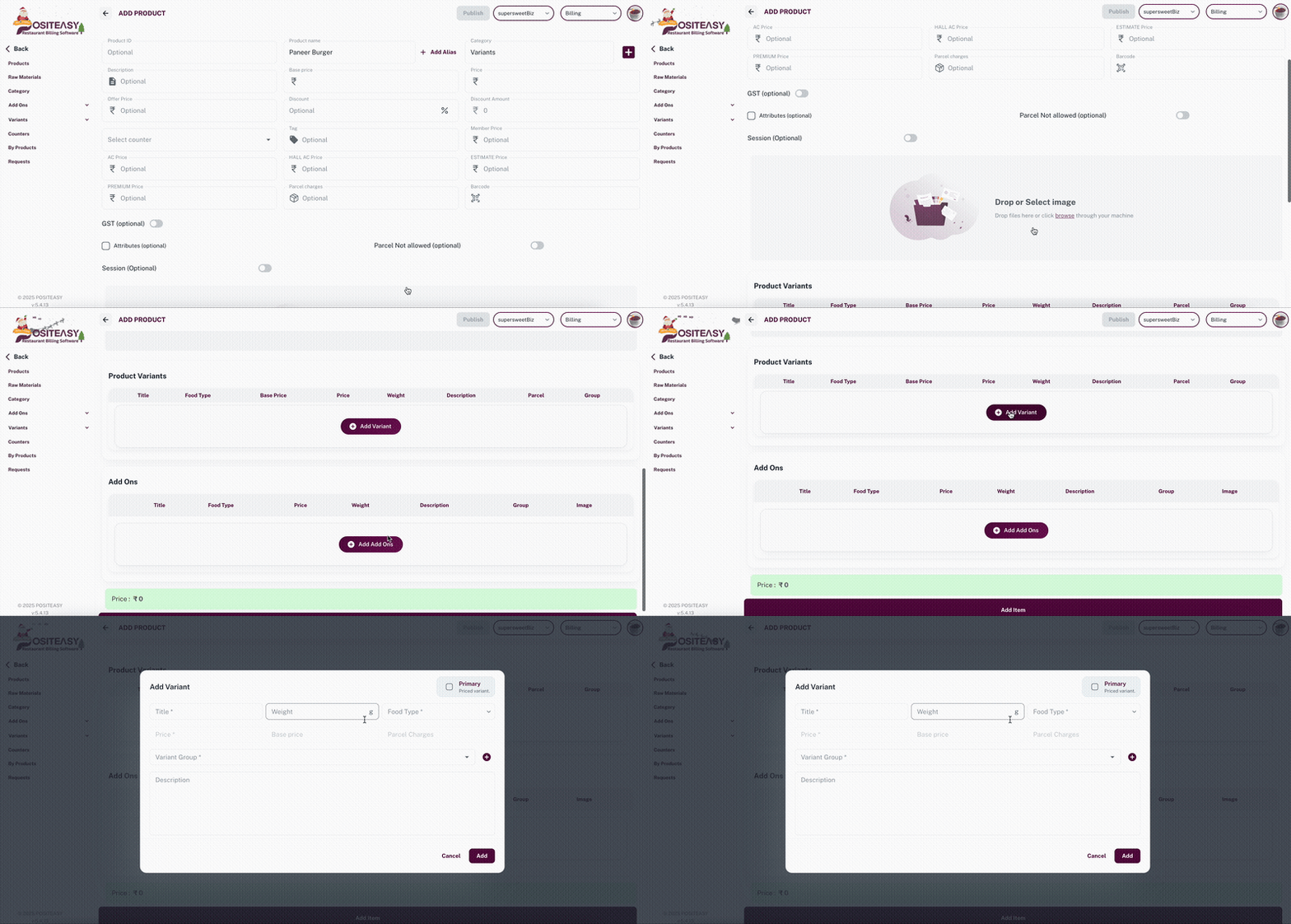
பரிந்துரை: எந்த வேரியண்ட் குழு விலையை நிர்ணயிக்க வேண்டும் என்பதை முன்கூட்டியே தீர்மானிக்கவும் (எ.கா: அளவு).
படி 3: முதன்மை விலை கொண்ட வேரியண்ட் குழு (அளவு)
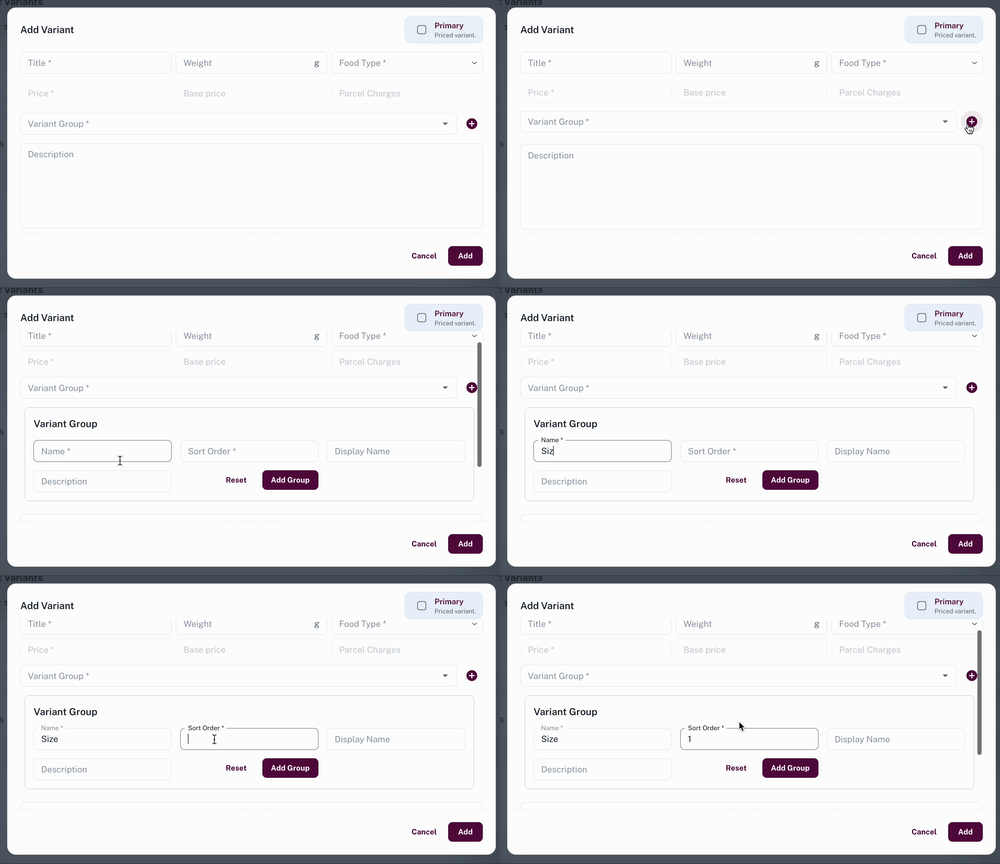
- அளவு என்ற வேரியண்ட் குழுவை உருவாக்கவும்
- பெயர் மற்றும் Sort Order உள்ளிட்டு குழுவை சேமிக்கவும்
- வேரியண்ட் சேர்க்கும்போது, முதன்மை விலை கொண்ட வேரியண்ட் விருப்பத்தை ON செய்யவும்
- வேரியண்ட் பெயர், உணவு வகை, விலை, பார்சல் கட்டணம் (விருப்பம்) ஆகியவற்றை உள்ளிடவும்
எடுத்துக்காட்டு:
| வேரியண்ட் | விலை |
|---|---|
| மீடியம் | ₹150 |
| லார்ஜ் | ₹180 |
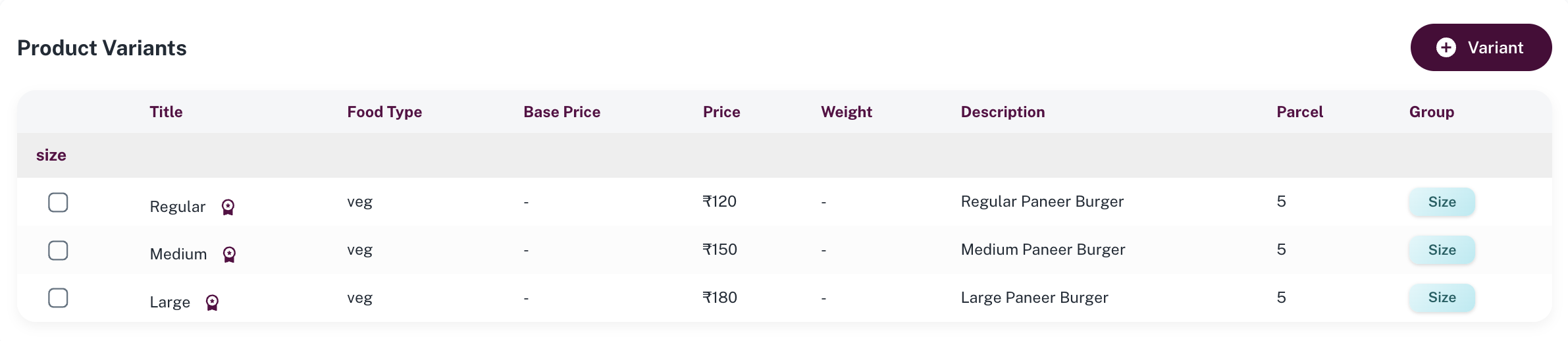
முதன்மை விலை கொண்ட வேரியண்ட் குழுவில் விலை புலம் கட்டாயமாக இருக்கும்.
படி 4: ₹0 விலை கொண்ட வேரியண்ட் குழுக்கள்
பன்னீர் வகை
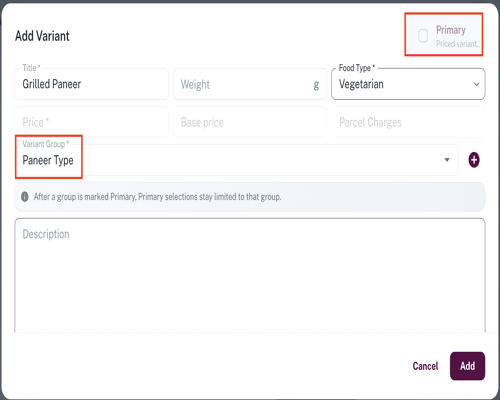
- Paneer Type என்ற பெயரில் ஒரு Variant Group உருவாக்கவும்.
- இந்த Variant Group தேர்வு செய்யப்பட்டால், இது முக்கிய விலை (Primary priced) குழு அல்லாததால் Price புலம் செயலிழந்த நிலையில் இருக்கும்.
- Variants சேர்க்கவும் எடுத்துக்காட்டு: கிரில்ட் பன்னீர், கிரிஸ்பி பன்னீர்
சாஸ்
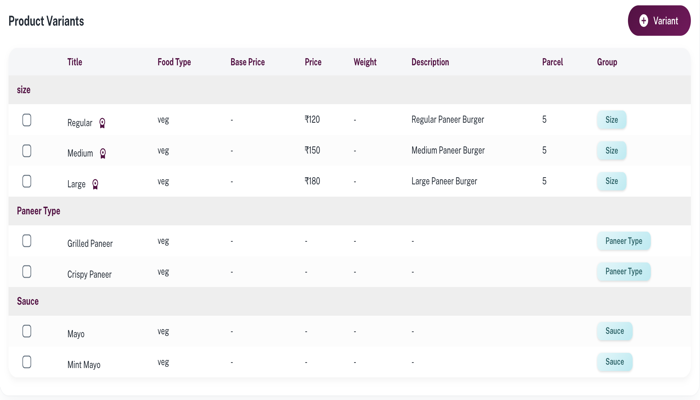
- சாஸ் என்ற வேரியண்ட் குழுவை உருவாக்கவும்
- எடுத்துக்காட்டு: மேயோ, மின்ட் மேயோ
படி 5: பொருளை சேமித்தல்
- விலை உள்ள குழு ஒன்றே இருப்பதை உறுதி செய்யவும்
- மற்ற அனைத்து வேரியண்ட் குழுக்களும் ₹0 மற்றும் Single-select ஆக இருப்பதை சரிபார்க்கவும்
- Save / Update Item தேர்வு செய்யவும்
பில்லிங் நேரத்தில் கணக்கீடு
- இறுதி விலை, முதன்மை விலை கொண்ட வேரியண்ட் தேர்வின் அடிப்படையில் மட்டுமே கணக்கிடப்படும்
- ₹0 வேரியண்ட்கள் தனிப்பயன் தேர்வுகளாக மட்டும் செயல்படும்
- ஒவ்வொரு வேரியண்ட் குழுவிலிருந்தும் ஒரு தேர்வு அவசியம்
பில்லிங் எடுத்துக்காட்டு
Sync செய்த பிறகு, பொருள் ஸ்டாஃப் செயலி பில்லிங் திரையில் காணப்படும்.
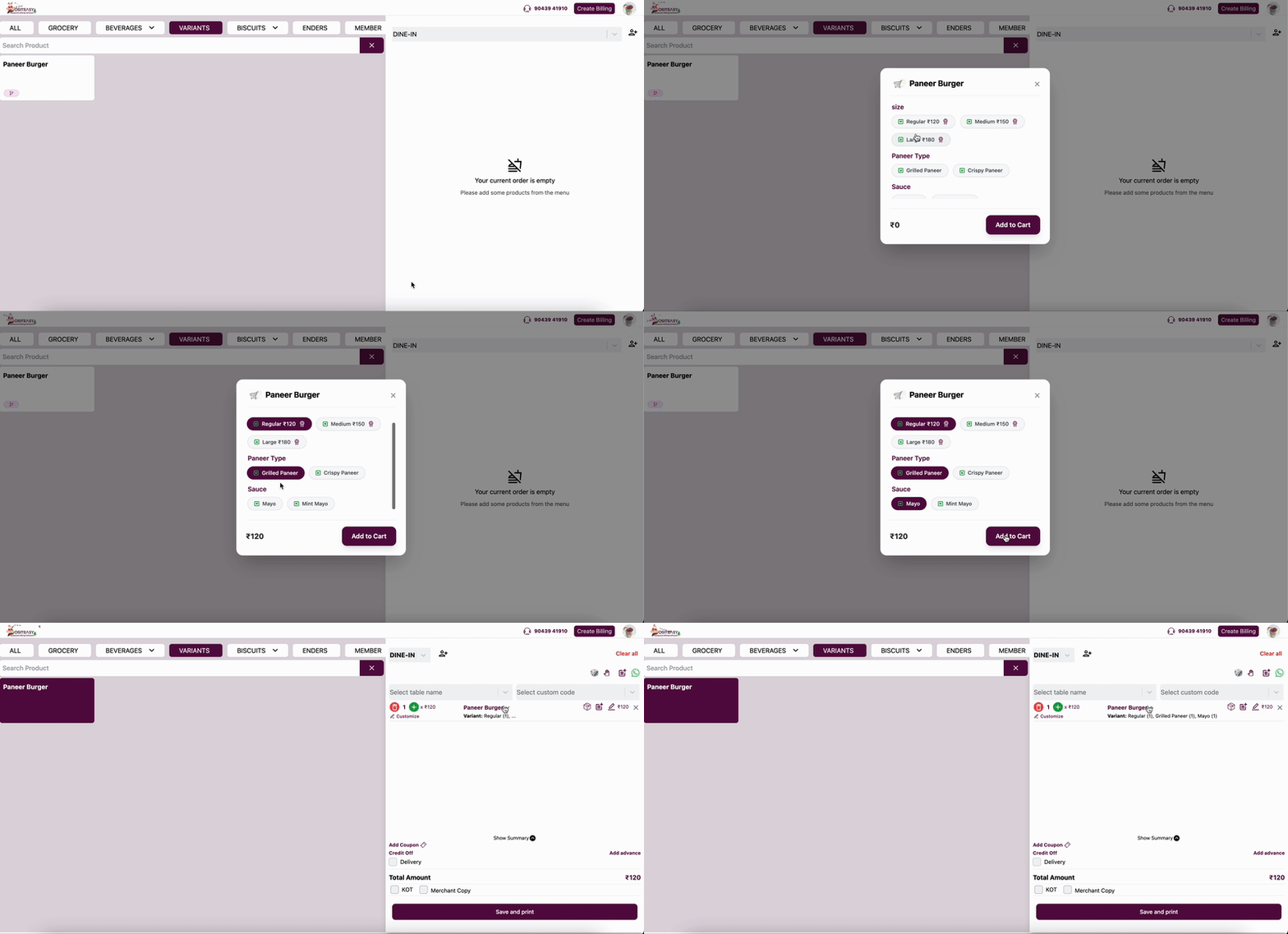
தேர்வுகள்:
- அளவு: ரெகுலர் — ₹120
- பன்னீர் வகை: கிரில்ட் பன்னீர்
- சாஸ்: மேயோ
இறுதி விலை: ₹120